Imagine this: your team has built an efficient file organization system in Microsoft Teams, where each customer has their own dedicated folder within your general team channel. It’s straightforward and ensures everyone can easily access the files they need.
But when it’s time to link these folders to Dynamics 365, you’re faced with a dilemma: none of the built-in options support your existing structure. What do you do?
When connecting Dynamics 365 to SharePoint, there are two advertised methods:
1. Use the out-of-the-box Server-Based SharePoint Integration
2. Link individual records with a Microsoft Teams channel and access the Files tab (which is just SharePoint in the background)
If you don’t want to change your current setup of one folder per customer under a general team channel, official documentation falls short.
Here’s the good news: there is a way to keep your files in the same location and still connect each individual folder to a record in Dataverse. The downside is that you’ll need to manage the creation of new folders yourself.
Creating the SharePoint Site record
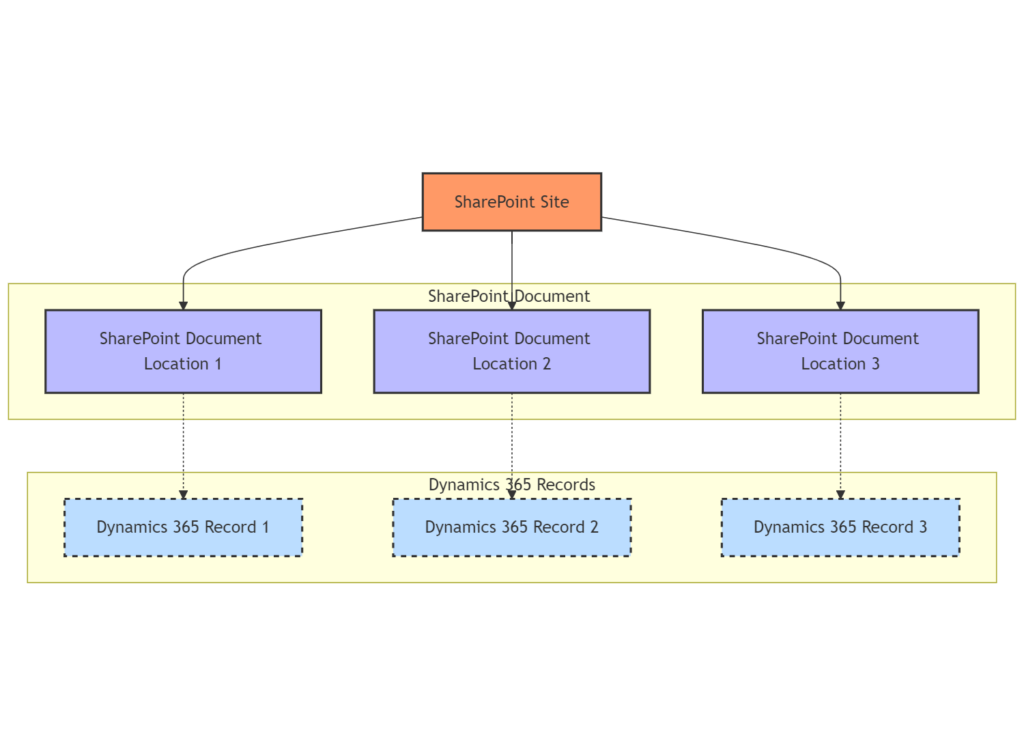
The folder shown in the Documents tab on a Dynamics 365 record is controlled by a related sharepointdocumentlocation record. This document location must have a relation to another record in the sharepointsite table, where the URL to SharePoint is stored.
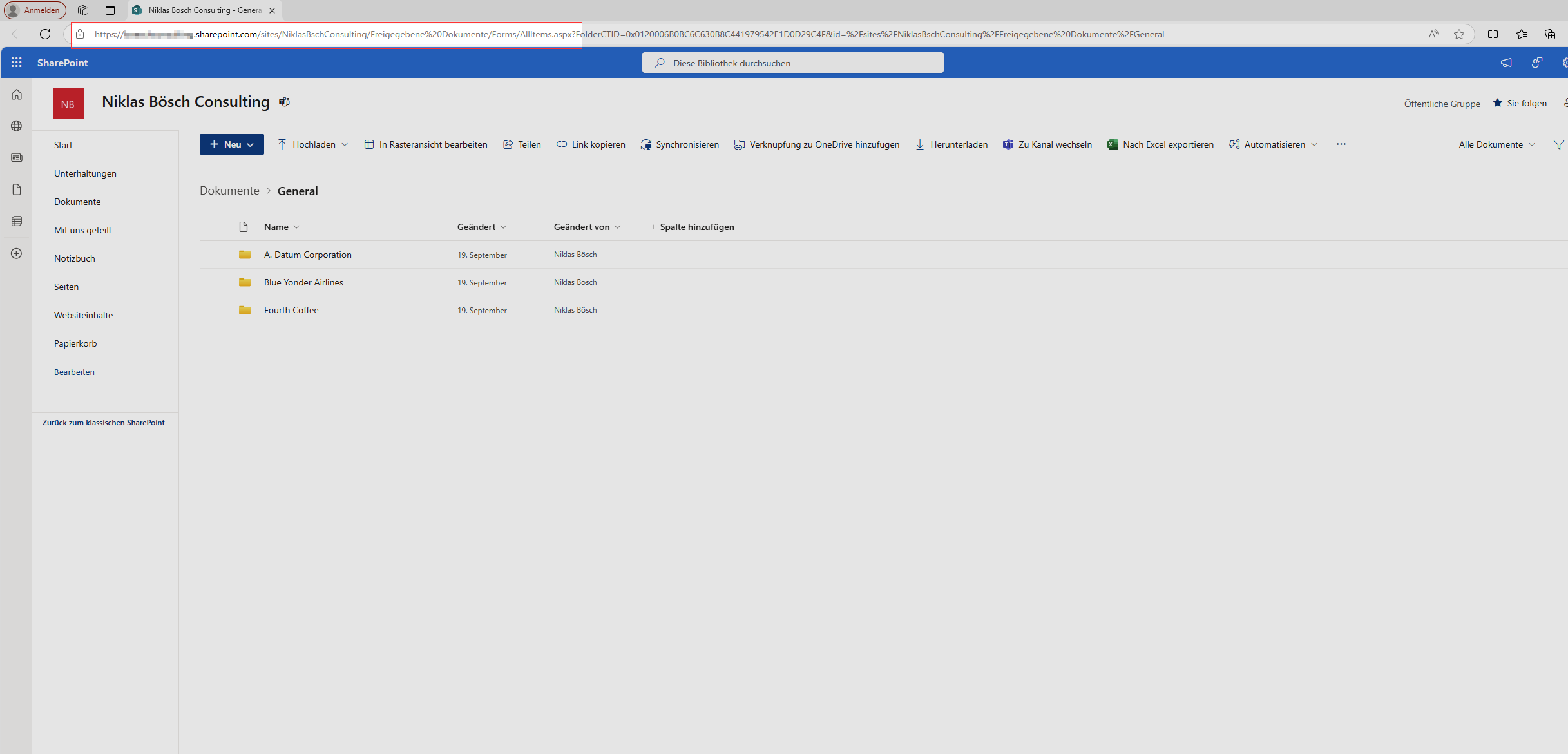
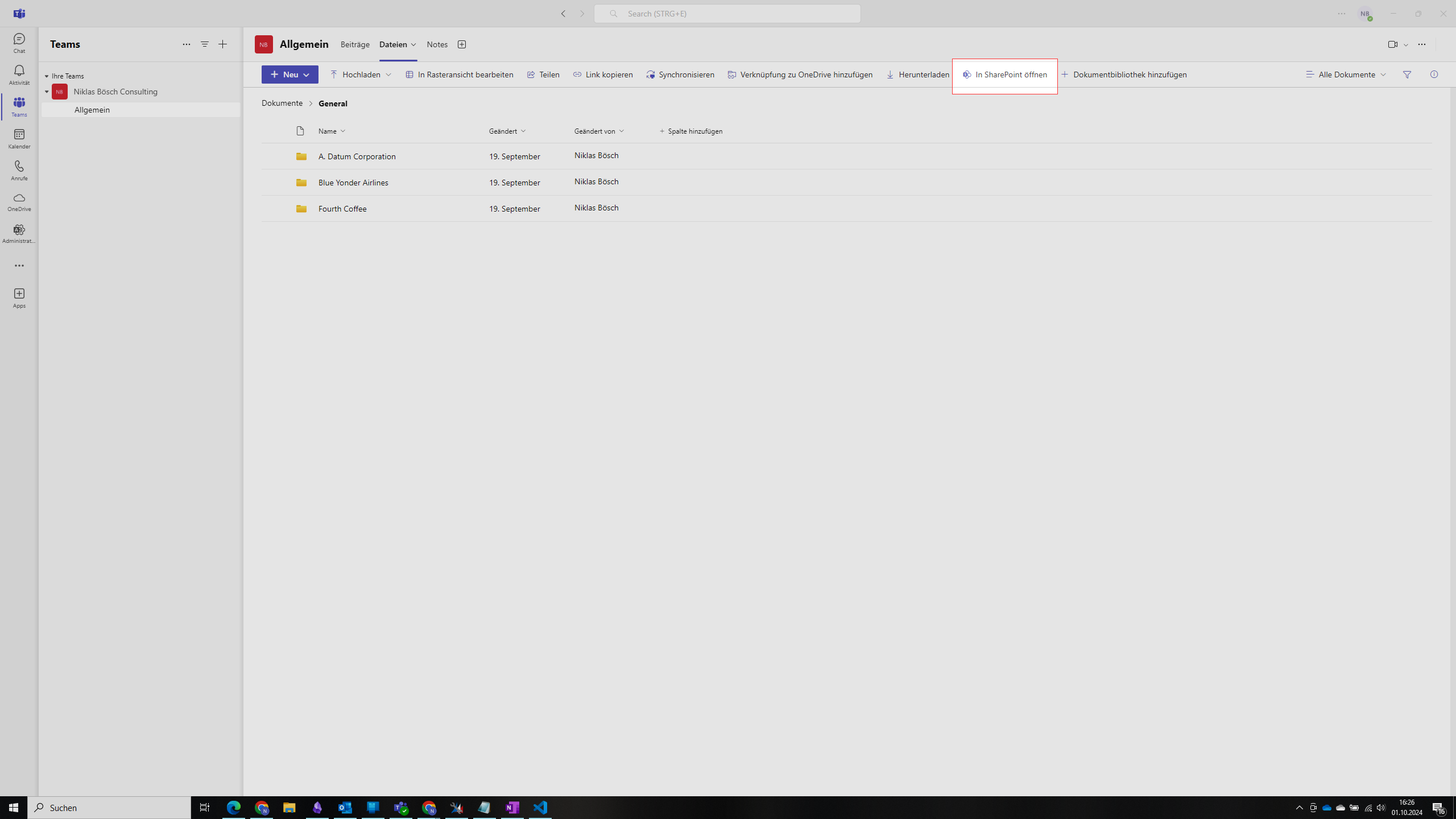
First, we need to find the SharePoint Site which is connected to Teams, so open the tab in your Teams channel in which the folders you want to connect are and open SharePoint via the command bar. Copy the URL up to and including the team name (NiklasBschConsulting in the screenshot).
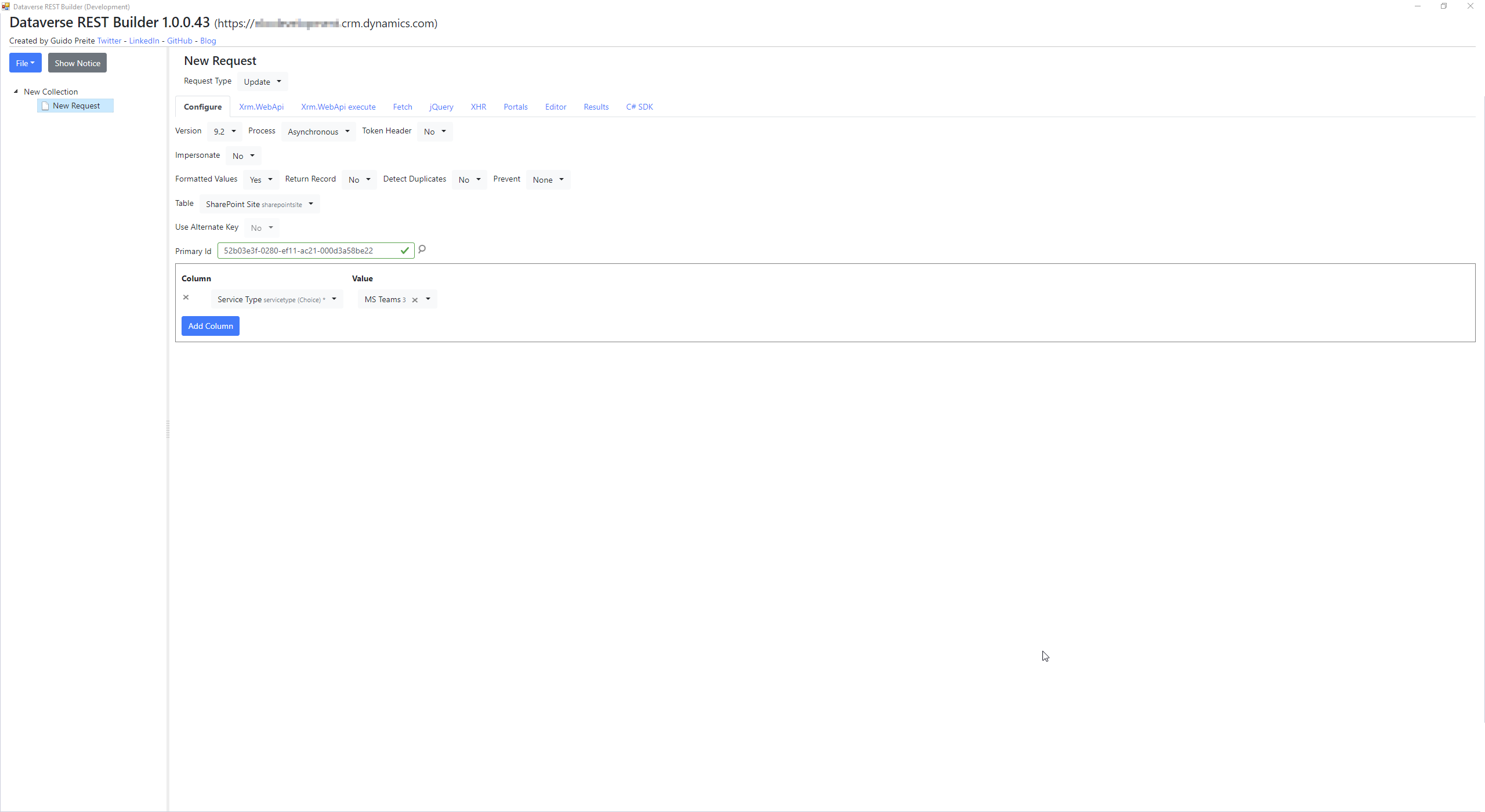
Now, create the sharepointsite record in Dynamics 365. I’m using the new settings experience, but it works the same with the old one. Set the Name field with a display name and the Absolute URL field with the URL you just copied. Check List component is installed as well.
After saving, you need to copy the GUID of the newly created record.
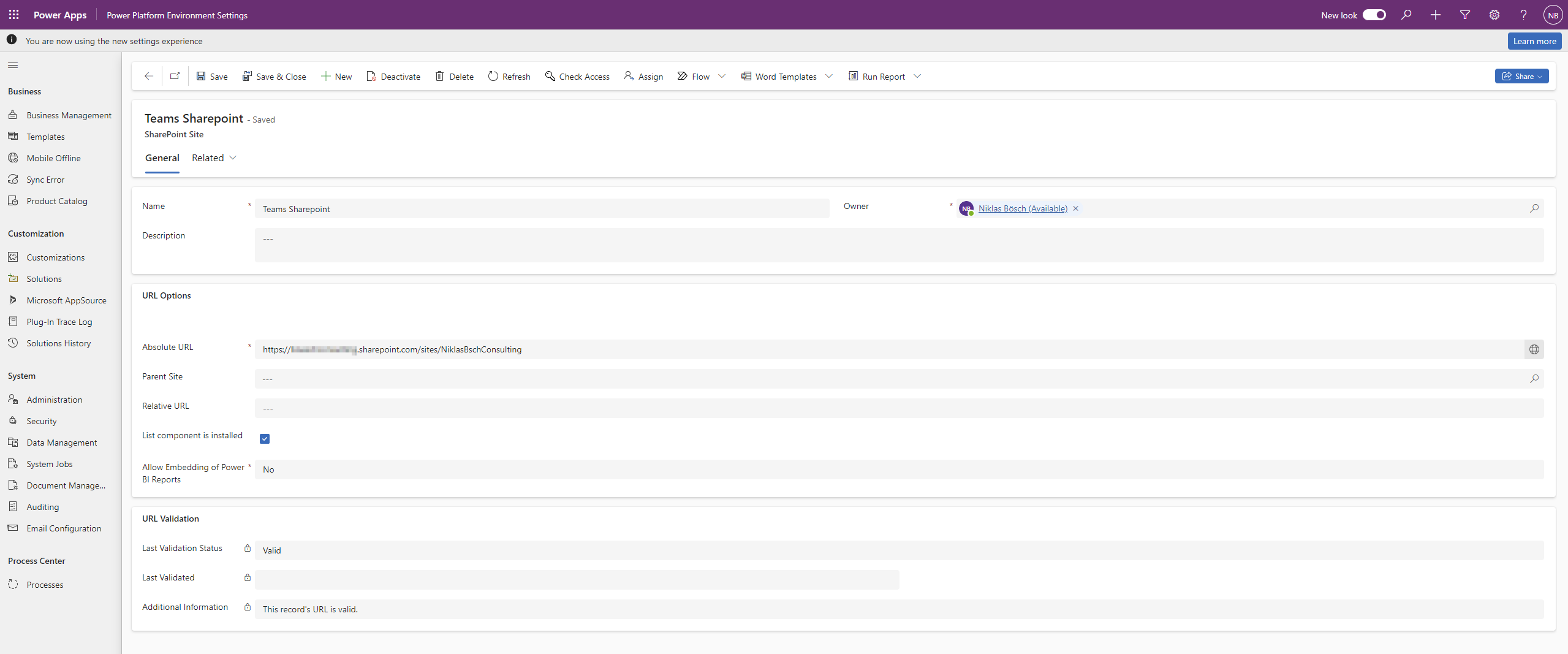
The sharepointsite table has a poorly documented choice attribute called Service Type, which can not be added to a form but needs to be set to the right value if the record refers to anything but a standard SharePoint Site. In the case of MS Teams Files, it needs to be set to 3 (MS Teams). I’m using the Dataverse REST Builder in XrmToolBox for this, as in the screenshot below.
Creating Document Locations
The next step is creating Document Locations. This step will be different depending on your current Teams SharePoint folder structure. In my demo case, I created the customer folders in the Files tab without any subfolders, so in SharePoint there were two automatically generated folders “Freigegebene Dokumente” (Shared Folders in english, but this is a german tenant) and then “General”. In “General” were the three folders “A. Datum Corporation”, “Blue Yonder Airlines” and “Fourth Coffee”. So in sum, to connect the three accounts to the folders, five Document Locations need to be created.
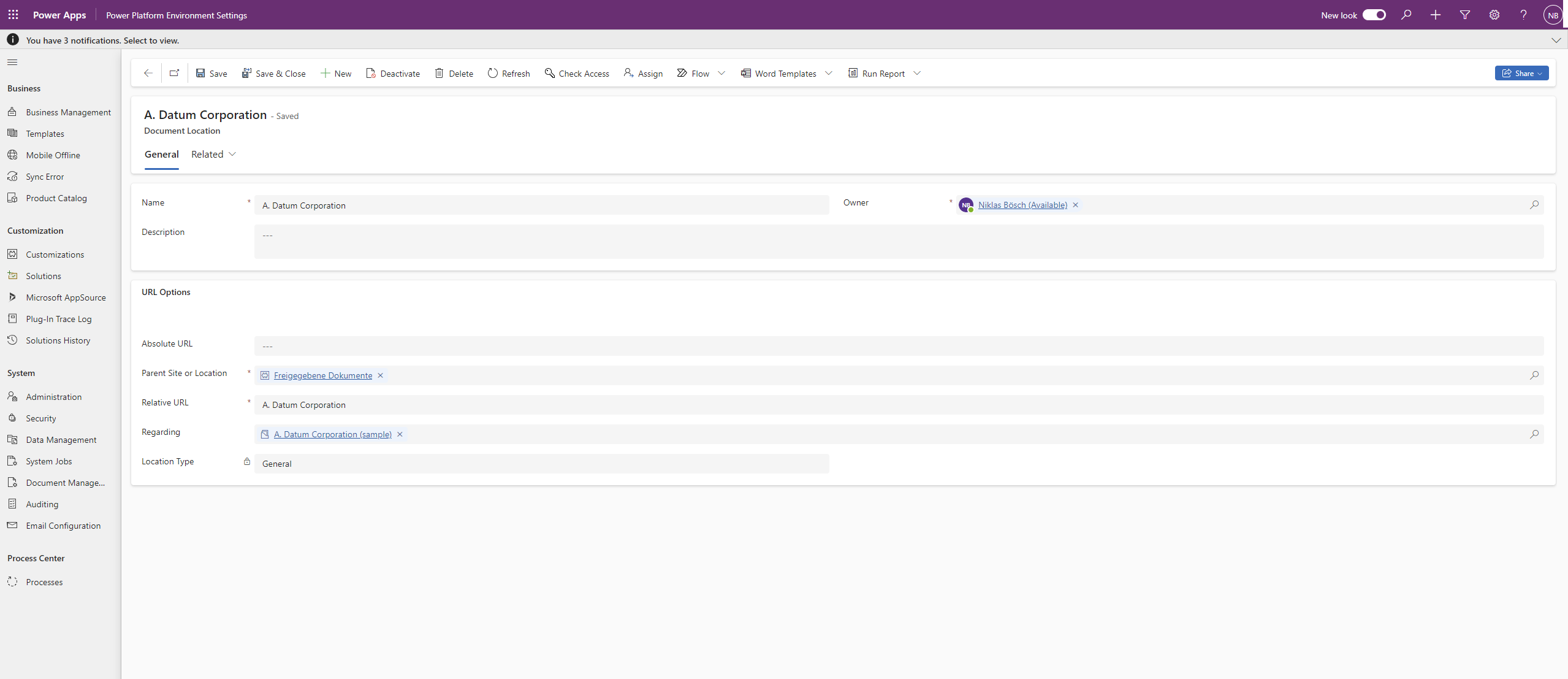
For every folder you want to connect to a Dynamics record, you’ll need a corresponding Document Location. Don’t forget: you’ll also need to create one for each parent folder. This can be done from the SharePoint Site record under “Related” – “Document Locations”. Fill in the display name (usually just the folder name) and the Relative URL (folder name as well). You also need to choose the right Parent Site or Location, which is either going to be the SharePoint Site created earlier or the parent folder document location. For any Document Location you want to show on a record, fill the Regarding Lookup just like an activity.
Nearly done…
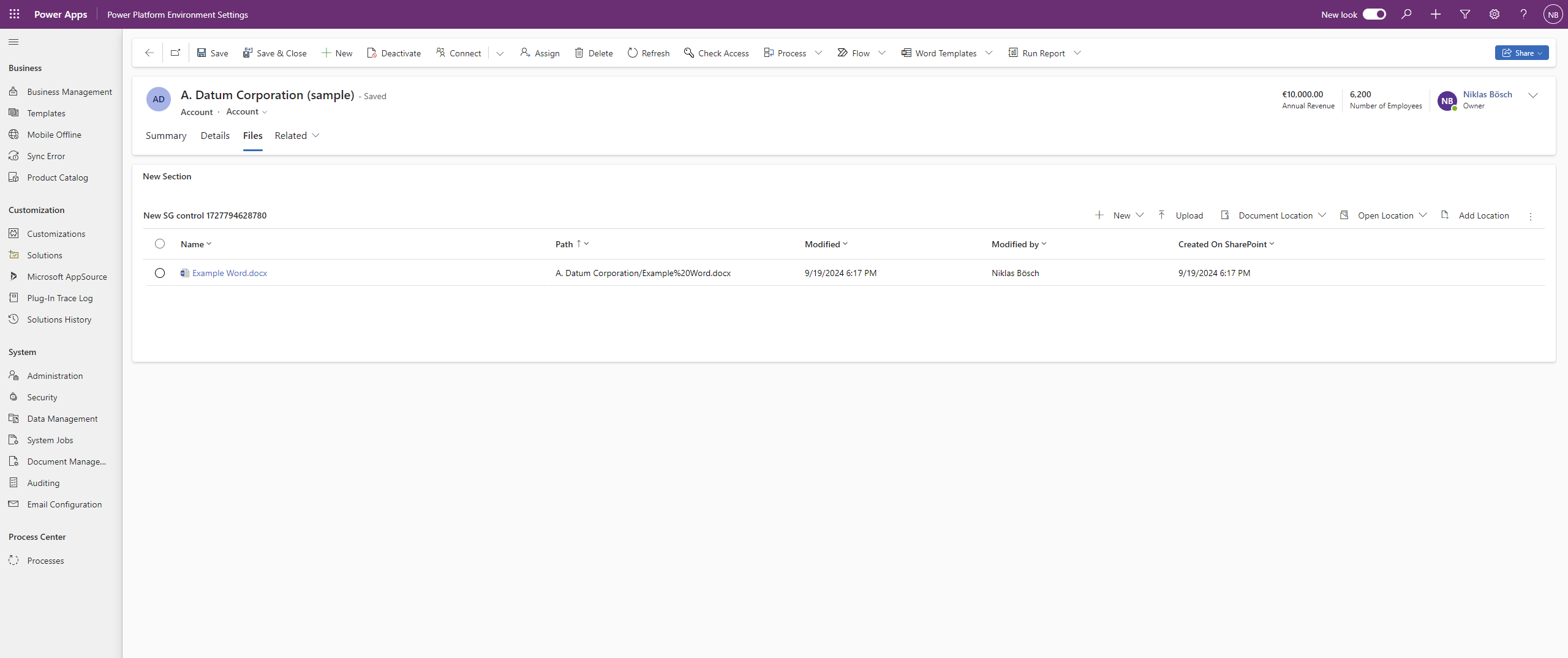
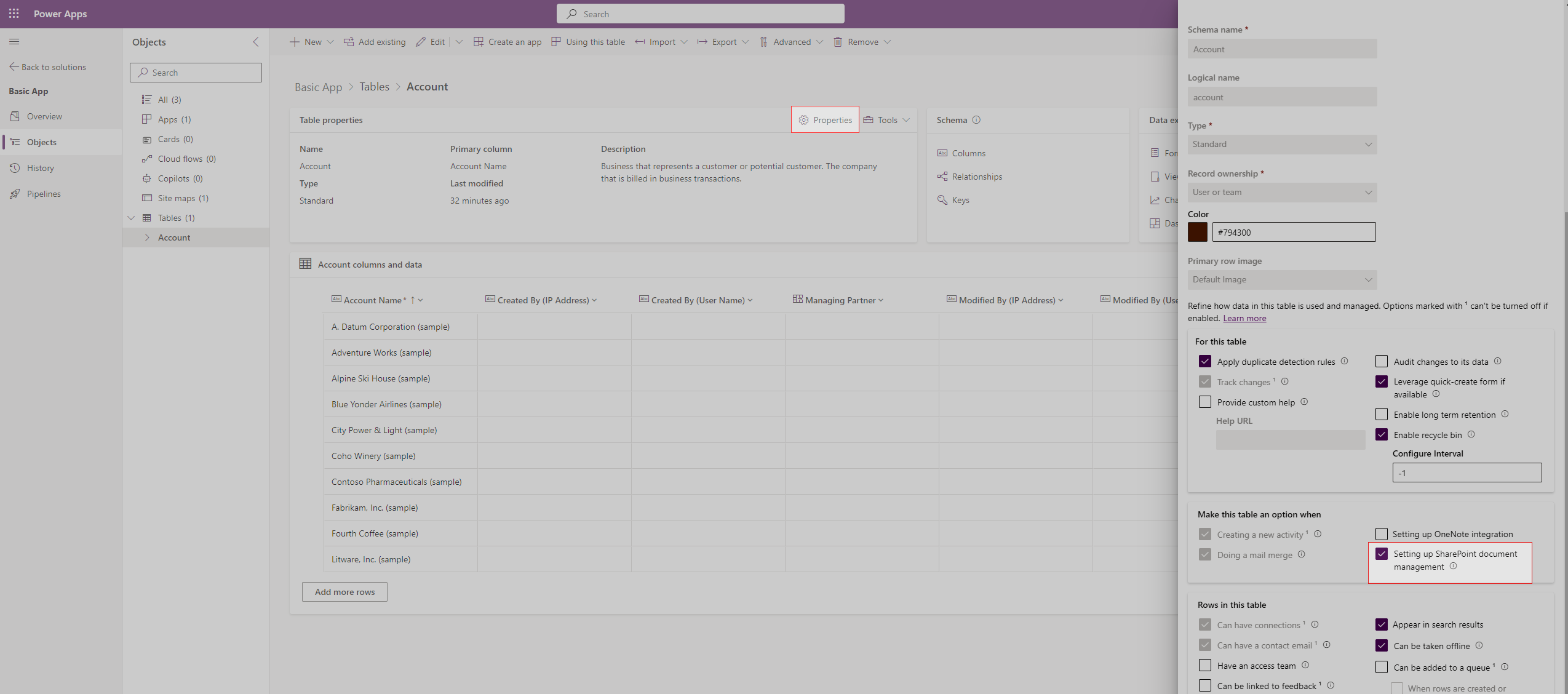
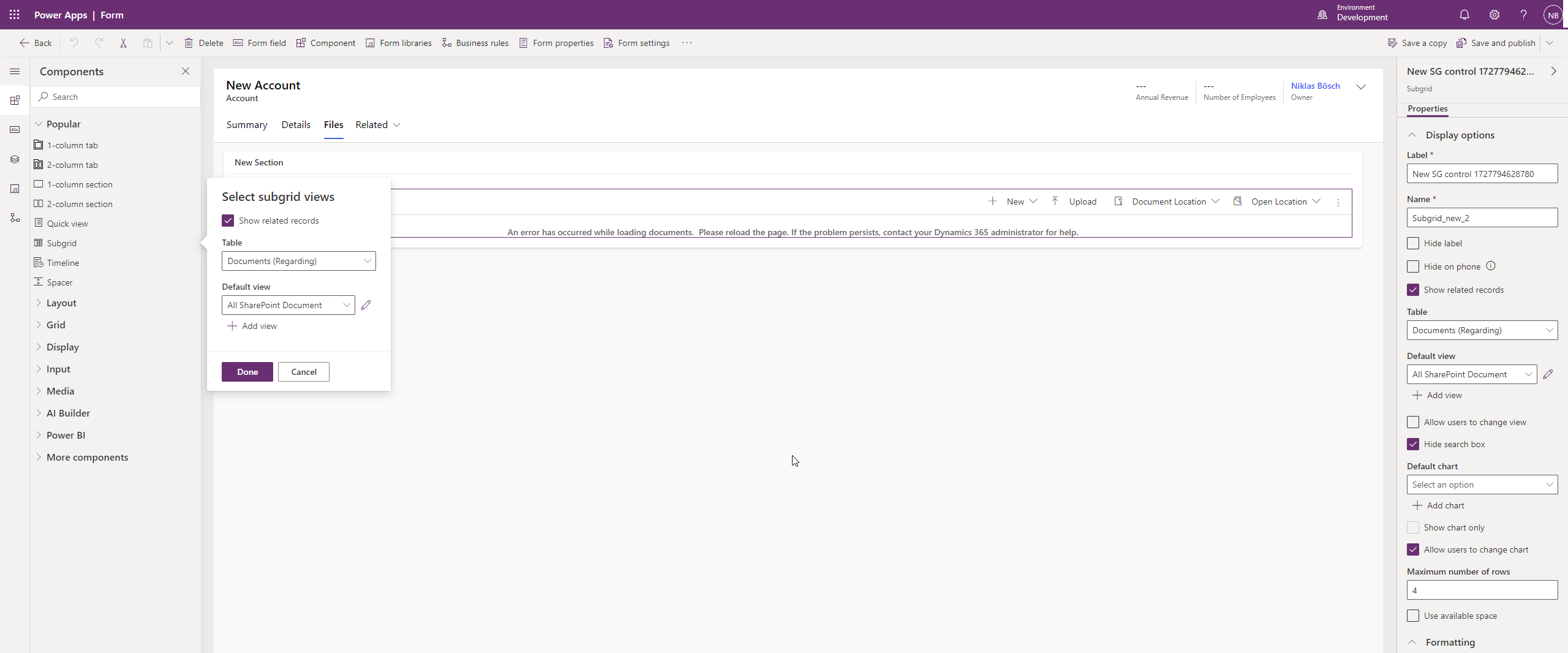
The last step is enabling the “Setting up SharePoint document management” setting for all tables you want to connect in the table properties and adding the document subgrid to your form.

If you’d like to streamline this further, there will be another post coming, where I’ll show you how to use Power Automate to automatically create standard folder structures in SharePoint for new accounts!
About the Author:

Niklas Bösch
Niklas is a freelance consultant and developer from Hamburg with deep expertise in Microsoft Dynamics 365 and the Power Platform. Having worked on a wide range of implementation projects, he has successfully taken on roles ranging from Product Owner and Lead Consultant to Business Analyst.
Focusing on connecting the various components of the Power Platform—including Model-driven and Canvas Power Apps, Power Automate, Power BI, and Copilot Studio—Niklas excels at crafting tailored solutions that streamline business processes, optimize workflows, and enhance productivity. By leveraging both custom apps and integrated tools, he delivers innovative solutions that provide actionable insights and meet the unique needs of each client. His approach focuses on using all available tools to deliver a cohesive system which is both efficient as well as intuitive to use.
Reference:
Bösch, N (2024). Integrating Dynamics 365 with existing Microsoft Teams File Structures. Available at: Integrating Dynamics 365 with existing Microsoft Teams File Structures – Niklas Bösch Consulting (niklas-boesch.de) [Accessed: 26th September 2024].