Introduction
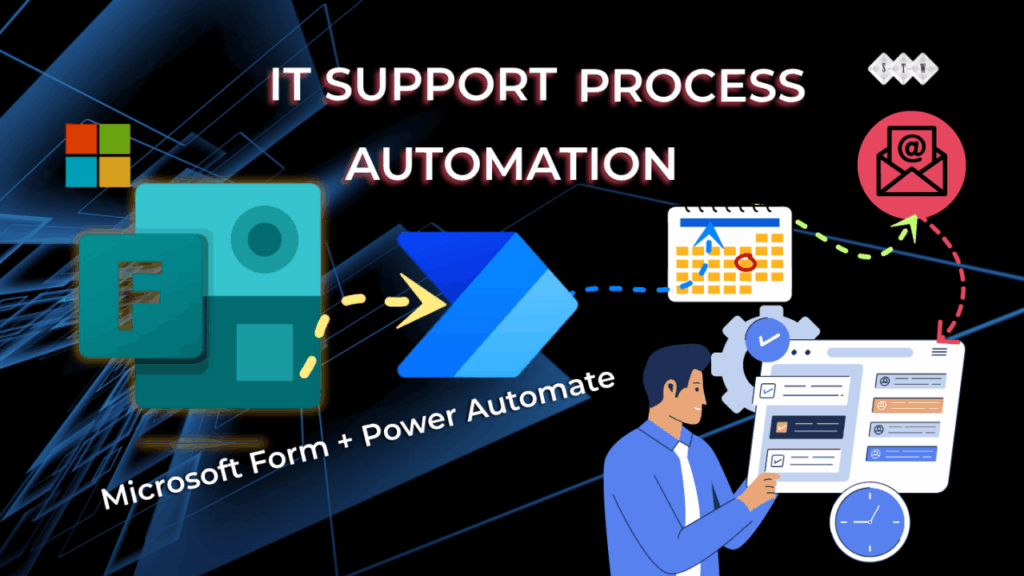
Managing IT support requests manually can be time-consuming and prone to delays. In this blog, we’ll walk you through how to build a simple yet powerful IT support automation flow using Microsoft Power Automate and Microsoft Forms.
From capturing support tickets via forms to automatically creating Planner tasks, sending acknowledgment emails, and updating task details, this workflow streamlines the entire process. Whether you’re an IT manager or a Power Platform enthusiast, this guide will help you boost productivity and ensure no support request falls through the cracks.
IT support task flow:
This is a complete IT support automation flow using power automation. Which I am going to explain step by step in this blog –

Step 1: Get response from Support form
This step initiates the flow whenever a user submits a response to the Microsoft Form titled “IT Support Request”. It captures the submission event and passes the response data to the next steps in the flow.
It is connected to the next action, where form response details are retrieved. Then we will have one more action, “Get response details” to collect the response form submitted so we can use it later.

Step 2: Create a task in planner
The “Create a task” step in your Power Automate flow is using Microsoft Planner to automatically generate a task when a new IT support request is submitted. Here’s a breakdown of each setting:
Main Parameters:
A. Group Id:
>> Demo Teams :- This is the Microsoft 365 Group where the Planner is located.
B. Plan Id:
>> Simple Plan :- Refers to the specific Planner plan under the “Demo Teams” group where the task will be created.
C. Title:
>> New task from [Employee name] on [Urgency] :- A dynamic title is created using values from the form response. This makes it easy to identify who submitted the task and how urgent it is.

Step 3: Deploy action
You need to wait for backend systems to update. You’re avoiding API throttling or race conditions. You’re ensuring sequential timing between task creation and follow-up actions (like sending notifications).
In this flow, it’s likely used to give Planner a few seconds to register the newly created task before proceeding to the next step.

Step 4: Update Task
This step adds useful information to the task, such as:
- What the request is about (Detailed description)
- Who submitted the form (responder)
- When it was submitted (submitDate)
This ensures that the assigned user has all relevant details for resolving the support request efficiently, directly within the Planner task.
Let me know if you want to also include form answers or links in the description!

Step 5: Update assignee or employee based on task creation status via email
Send an email (V2) – success
This step attempts to send an email using Outlook (Office 365). This action will iterate over a list all assignees and then send email to them.
Send an email (V2) – Failed
The red dot indicates that this action failed during execution.

Conclusion:
By integrating Microsoft Forms, Planner, and Outlook through Power Automate, we’ve created a seamless and efficient IT support process that reduces manual work, ensures timely task assignment, and improves overall response time.
With just a few steps, from capturing form responses to creating tasks and sending notifications, your IT team can stay organized and responsive. This low-code solution is not only easy to implement but also scalable to fit the evolving needs of your organization.
Start automating today and let your team focus on solving problems, not managing tickets.
About the Author

Sandeep Mishra
Microsoft MVP | Helping Teams Eliminate Project Chaos with Microsoft 365 + Dynamics 365 | Business Central | Copilot

Mishra, S (2025). Automating IT Support Requests with Microsoft Power Automate. Available at: (1) Automating IT Support Requests with Microsoft Power Automate | LinkedIn [Accessed: 16th July 2025].